
In Unity web or WebGL, size is one of the most important thing to optimize if you need better user experience. The web nature is instant, if someone hit the url or a site, he want instant access. In unity web build case, it is tough to instantly get unity webgl experience instantly. It is very tough cause even an empty build is cost several MBs to download and run. So in this blog we will explore, how to reduce Unity WebGL build size. Make it running quickly as much as possible. Lets start with most important unity webgl settings.
Publishing and Compression Settings
The most effective way to reduce the final build size is through Unity’s WebGL publishing settings:
• Use Brotli Compression: This is generally the best compression method because it offers a higher compression ratio than gzip, resulting in smaller files and faster load times. Note that it requires a secure HTTPS connection. Learn More: Brotli vs Gzip.
How to do it: Go to Project Settings > Player > Publishing Settings and set Compression Format to Brotli
• Disable Decompression Fallback: Setting this to "Disabled" is recommended to ensure fast startup times. (If you don't have access to server configuration, or can't handle server configuration, then check it. Remember Enabling decompression fallback results in a large loader size and a less efficient loading scheme for the build files)
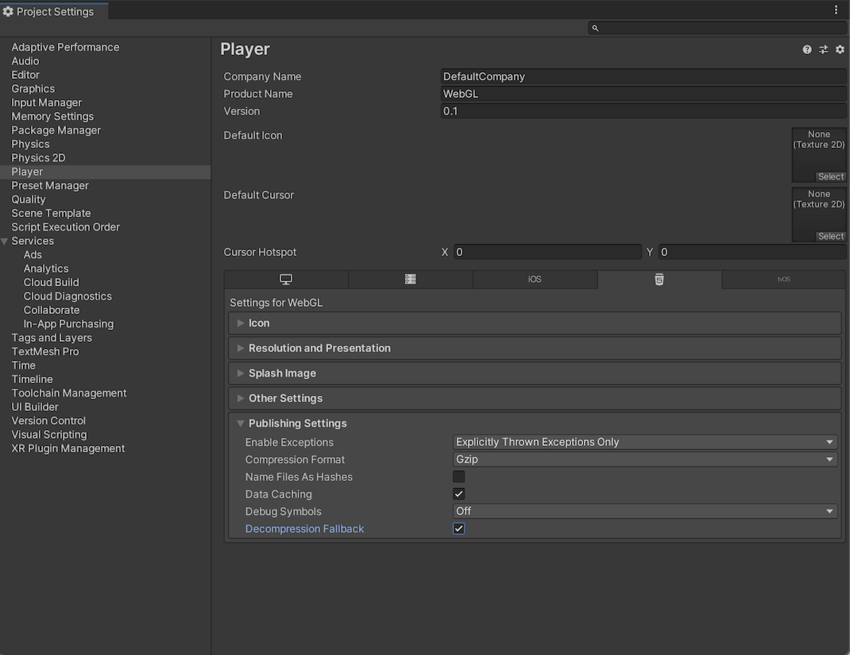 |
| WebGL publishing settings: Exception, Compression, Decompression fall back settings |
• Set Code Optimization to "Disk Size": For release builds, use the Disk Size with LTO (Link Time Optimization) setting, which aggressively shrinks the final code size.
How to do it: In the Project Build Platform Settings, set Code Optimization to Disk Size with LTO
• Target WebAssembly 2023: If your target browsers are modern (Firefox 89+, Chrome 91+, Safari 16.4+), enabling this feature set can further shrink the code size.
Asset Optimization
Textures, meshes, and audio often account for the bulk of a build's size.
• Textures: Lower the Max Size in import settings to the minimum visually acceptable level. Use ASTC compression for WebGL builds, as it is highly efficient.
How to do it: In the Build Profiles window for WebGL, set Texture Compression to ASTC
• Meshes: Enable Mesh Compression to reduce the space they occupy on disk. You should also disable unnecessary data like rigs, blend shapes, normals, or tangents if they aren't required for a specific mesh. (caution: after apply compression check Mesh Geometry and verify the acceptable qualit of the mesh, aggressive compression may degrade the mesh visuals significantly)

How to do it: Adjust this in the Mesh Import Settings under the Model tab
• Audio: Use compressed formats like Vorbis for background sound and ADPCM for short sound effects. Reducing the sample rate to 22,050 Hz is usually sufficient for web playback and saves significant space.
• Remove Unused Resources: Manually strip out test assets or scripts from third-party plugins that are not needed for the final game.
Engine and Code Stripping
Unity allows you to remove parts of the engine your project doesn't use:
• Enable Strip Engine Code: This setting is highly recommended for WebGL; it identifies and removes unused engine modules to significantly reduce the final build size.
◦ How to do it: Go to Project Settings > Player > Other Settings > Optimization and check Strip Engine Code
• Disable Exceptions: Set "Enable Exceptions" to None in Publishing Settings. This removes the additional code required for runtime checks and exception handling, providing further size savings.
• Clean Up Project Settings: Disable "Auto Graphics API" to avoid generating excessive shader variants, and remove any unused Quality levels in your Project Settings.
Architectural Strategies
• Addressable Asset System: Instead of including all assets in the initial build, use Addressables to split non-code assets (models, textures, audio) into AssetBundles. These can be hosted on a remote server (CDN) and downloaded only when needed, resulting in a much smaller initial download for the user.
• Unity DataTools: Utilize these open-source tools to analyze your project for unused assets and detect hidden dependencies that might be inflating your build size





.png)
0 Comments